Thanks to @NextWorksGFX for this amazing banner!
Unofficial Microsoft 365 Web Desktop Wrapper made with Electron






# Table of contents
- [Table of contents](#table-of-contents)
- [Introduction](#introduction)
- [List of Features](#list-of-features)
- [Windows](#windows)
- [💿 Installation on Windows](#-installation-on-windows)
- [📸 Windows Preview](#-windows-preview)
- [macOS](#macos)
- [💿 Installation on macOS](#-installation-on-macos)
- [📸 macOS Preview](#-macos-preview)
- [⚠️ Unable to launch the app](#️-unable-to-launch-the-app)
- [Linux](#linux)
- [💿 Installation on Linux](#-installation-on-linux)
- [Installation on Ubuntu/Debian based distributions](#installation-on-ubuntudebian-based-distributions)
- [Installation on Red Hat/Fedora based distributions](#installation-on-red-hatfedora-based-distributions)
- [Installation on Arch Linux based distributions](#installation-on-arch-linux-based-distributions)
- [Installation on Gentoo Linux (Unmaintained)](#installation-on-gentoo-linux-unmaintained)
- [💻 Developing Locally](#-developing-locally)
- [📃 MIT License](#-mit-license)
# Introduction
MS-365-Electron streamlines your workflow by offering a dedicated desktop interface for the free, web-based version of [Microsoft 365](https://microsoft365.com). Think of it as a convenient launchpad for web applications like Word, Excel, and PowerPoint, eliminating the need to navigate through browser tabs.
I initially made this project because I wanted to use Microsoft 365 on my Linux system with a native experience. Later, I decided to make it public so that others can enjoy this too!
This is not a full-fledged Microsoft 365 Suite, but just a web wrapper for Microsoft 365 Web, made with Electron.
***Do expect bugs***
Supported Platforms
1. Windows - x64 (EXE File)
2. macOS - x64 and M-series Macs (DMG File)
3. Ubuntu/Debian based distributions (DEB File)
4. Red Hat Linux/Fedora based distributions (RPM File)
5. Arch Linux based distributions (Uploaded on AUR)
6. Gentoo Linux (Unofficial overlay) **[MAINTAINER NEEDED]**
7. All Distributions supporting AppImage (AppImage File); and
8. All Distributions supporting Snap (Uploaded on Snap Store)
# List of Features
- Discord RPC
- Dynamic Icons:
- For macOS: App's icon in dock changes according to the app you've opened [[Preview]](https://github-production-user-asset-6210df.s3.amazonaws.com/68941022/245203309-3d0dfc1b-02e9-43a8-85d7-9493a2b86b56.mp4)
- For Windows: Sets overlay icon [[Preview]](https://github.com/agam778/MS-365-Electron/assets/68941022/791b661b-2b7d-43a6-96df-ee9c30c9b18a)
- For Linux: Nothing, yet
- Block Ads and Trackers within the app, preventing ads in websites like Outlook
- Directly open apps from the menu
- Ability to use useragent strings of Windows, macOS or Linux
- Switch between normal and enterprise/education/developer account in the same app
- Back, Forward, Reload, and Home buttons
- and more
# Windows
## 💿 Installation on Windows
For Installing this app on Windows:
1) Visit the [Releases](https://github.com/agam778/MS-365-Electron/releases) page
2) Scroll down and click the `MS-365-Electron-vx.x.x-win-x64.exe` file. The Setup file will start downloading.
3) After it downloads, click on the file and proceed with the Installation. You can choose whether to install for only you or all the users on the PC. You can always start the app from Start Menu or from the Desktop Shortcut.
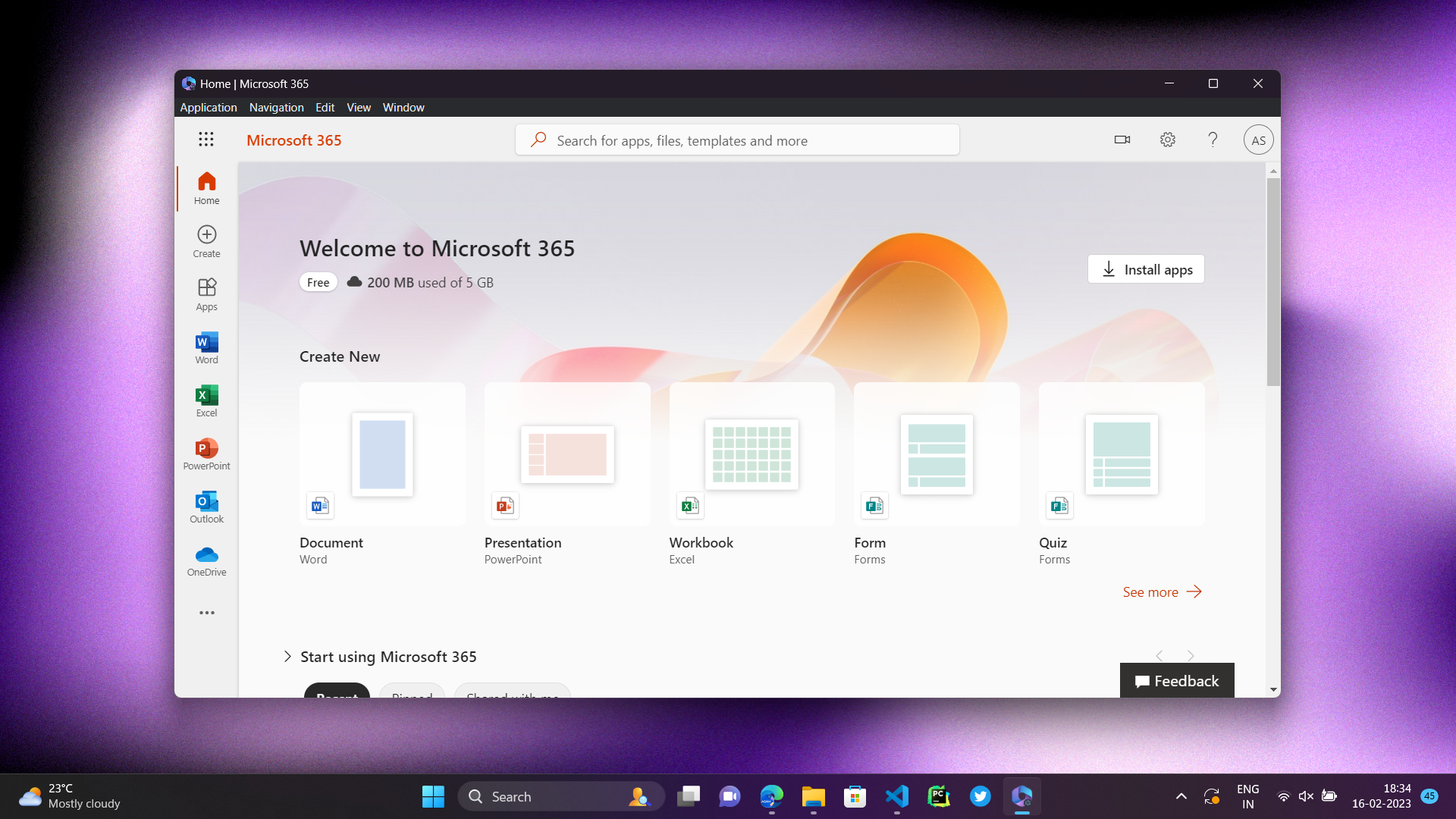
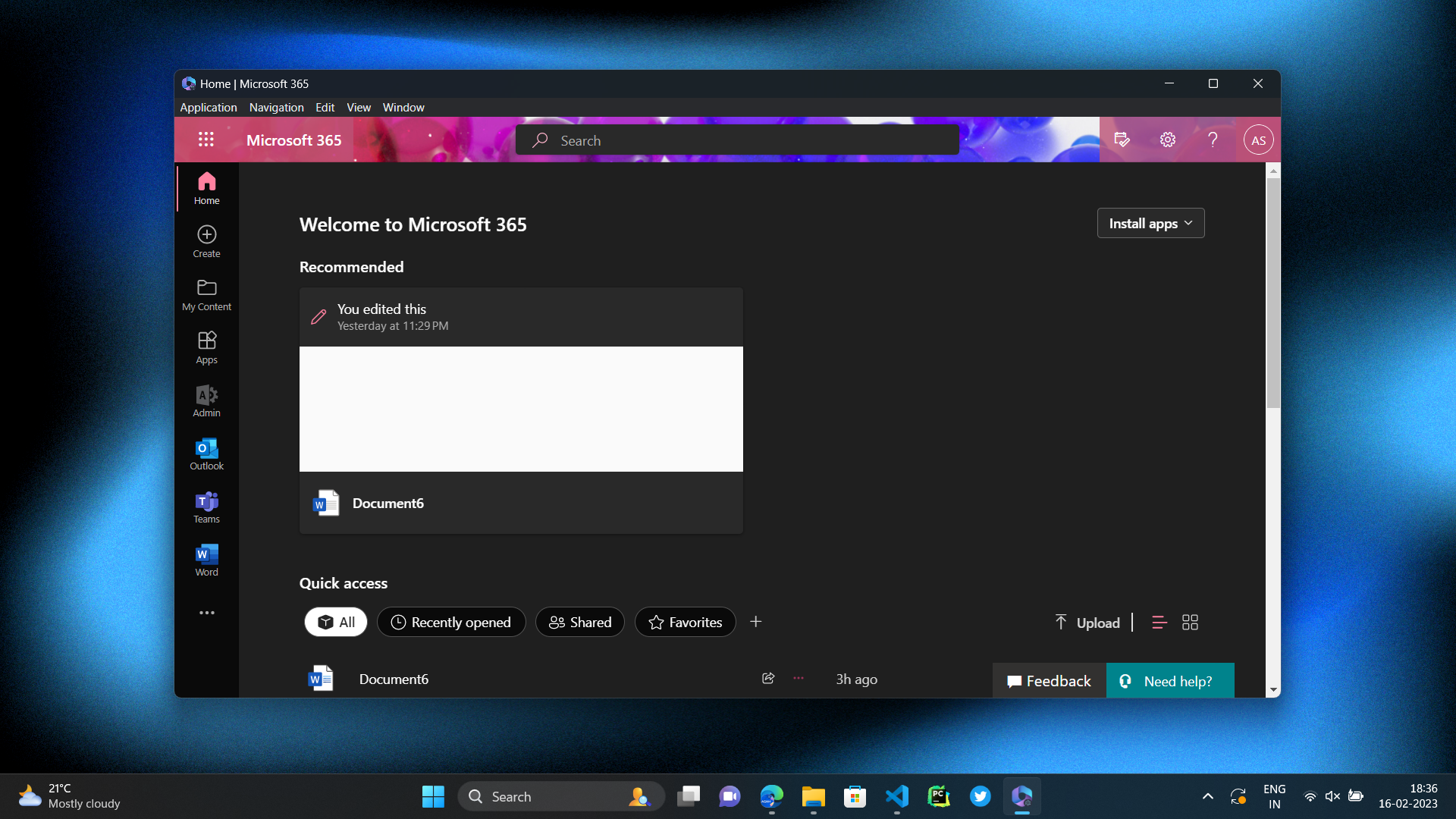
## 📸 Windows Preview
Click to expand
# macOS
## 💿 Installation on macOS
For Installing this app on Mac :-
1. Visit the [Releases](https://github.com/agam778/MS-365-Electron/releases) page
2. Scroll down and click the `.dmg` file (according to your system architecture).
3. After it downloads, click on the file and mount it on your system. Now drag my app to the Applications Folder (There will be a shortcut in the opened window too) and your app will be installed. Open from Launchpad and enjoy.
## 📸 macOS Preview
Click to expand

## ⚠️ Unable to launch the app
As MS-365-Electron is not signed, you might face this error:
 - For Intel Macs: Open the "Applications" Folder in Finder, right click "MS-365-Electron" and then click Open
- For M series Macs:
- Make sure you have placed the app in Applications
- Run this command: `sudo spctl --master-disable && xattr -cr /Applications/MS-365-Electron.app`
- Launch the app again
# Linux
## 💿 Installation on Linux
- For Intel Macs: Open the "Applications" Folder in Finder, right click "MS-365-Electron" and then click Open
- For M series Macs:
- Make sure you have placed the app in Applications
- Run this command: `sudo spctl --master-disable && xattr -cr /Applications/MS-365-Electron.app`
- Launch the app again
# Linux
## 💿 Installation on Linux
 ### Installation on Ubuntu/Debian based distributions
For Installing in Ubuntu/Debian based distribution :-
1) Visit the [Releases](https://github.com/agam778/MS-365-Electron/releases) page
2) Scroll down and click the `.deb` file to download it.
3) Then run the deb file and click Install to install the App. Launch it from the Applications Menu.
### Installation on Red Hat/Fedora based distributions
For Installing in Red Hat/Fedora based distribution :-
1) Visit the [Releases](https://github.com/agam778/MS-365-Electron/releases) page
2) Scroll down and click the `.rpm` file to download it.
3) Then run the rpm file and click Install to install the App. Launch it from the Applications Menu.
### Installation on Arch Linux based distributions
1. Install any AUR helper like [`yay`](https://github.com/Jguer/yay) or [paru](https://github.com/Morganamilo/paru)
2. There are 2 packages in the AUR
- `ms-365-electron-bin`: For installing pre-built releases
- `ms-365-electron-git`: For building the app from source and installing.
3. Now, for example, using `yay`, run:
```bash
yay -Sy ms-365-electron-*
```
To install the package accordingly.
4. Wait for it to install and tada! The app is installed.
### Installation on Gentoo Linux (Unmaintained)
_Maintainer needed_
1. This is supported by an ebuild uploaded on my unofficial overlay. First, enable the overlay on your system:
```bash
eselect repository add agam778-overlay git https://github.com/agam778/agam778-overlay.git
emaint sync -r agam778-overlay
```
2. Now, install the package:
```bash
sudo emerge -a ms-office-electron
```
# 💻 Developing Locally
To build the app locally:
### Installation on Ubuntu/Debian based distributions
For Installing in Ubuntu/Debian based distribution :-
1) Visit the [Releases](https://github.com/agam778/MS-365-Electron/releases) page
2) Scroll down and click the `.deb` file to download it.
3) Then run the deb file and click Install to install the App. Launch it from the Applications Menu.
### Installation on Red Hat/Fedora based distributions
For Installing in Red Hat/Fedora based distribution :-
1) Visit the [Releases](https://github.com/agam778/MS-365-Electron/releases) page
2) Scroll down and click the `.rpm` file to download it.
3) Then run the rpm file and click Install to install the App. Launch it from the Applications Menu.
### Installation on Arch Linux based distributions
1. Install any AUR helper like [`yay`](https://github.com/Jguer/yay) or [paru](https://github.com/Morganamilo/paru)
2. There are 2 packages in the AUR
- `ms-365-electron-bin`: For installing pre-built releases
- `ms-365-electron-git`: For building the app from source and installing.
3. Now, for example, using `yay`, run:
```bash
yay -Sy ms-365-electron-*
```
To install the package accordingly.
4. Wait for it to install and tada! The app is installed.
### Installation on Gentoo Linux (Unmaintained)
_Maintainer needed_
1. This is supported by an ebuild uploaded on my unofficial overlay. First, enable the overlay on your system:
```bash
eselect repository add agam778-overlay git https://github.com/agam778/agam778-overlay.git
emaint sync -r agam778-overlay
```
2. Now, install the package:
```bash
sudo emerge -a ms-office-electron
```
# 💻 Developing Locally
To build the app locally:
Run the following commands to clone the repository and install the dependencies
```bash
git clone https://github.com/agam778/MS-365-Electron.git
cd MS-365-Electron
yarn install
```
```bash
$ yarn run
➤ YN0000: start 'electron .'
➤ YN0000: pack 'electron-builder --dir'
➤ YN0000: dist 'electron-builder'
➤ YN0000: Done in 0s 2ms
```
To start the app, run `yarn start`
To build the app, run `yarn dist`
# 📃 MIT License
View the [LICENSE](./LICENSE)
*Disclaimer: Not affiliated with Microsoft. Office, the name, website, images/icons are the intellectual properties of Microsoft.*